Exterior photo editing
Don't Worry About the Leaves, We Got You! AI Leaf Removal for Real Estate Photos
See how picAid detects fallen leaves and automatically cleans up autumn real estate photos, with original-surface safeguards and optional Grass and Season modes.
picAid · Published · 4 min read
Autumn color belongs in the photo. Leaf clutter does not have to.
Don't worry about the leaves, we got you! picAid's fallen-leaf detection can identify leaves in an exterior photo and automatically apply the leaf-removal task. The goal is to reveal the property's existing surfaces where the photograph provides enough visible detail, not redesign them or guess what is hidden beneath a solid blanket of leaves.
Fall is a beautiful time to photograph a home, but a patio can collect fresh leaves between cleanup and the photographer's arrival. Overcast weather can also make colorful landscaping look dull. AI real estate photo editing can help reduce those distractions and make gloomy autumn scenes look brighter and more colorful, while keeping attention on the outdoor space.
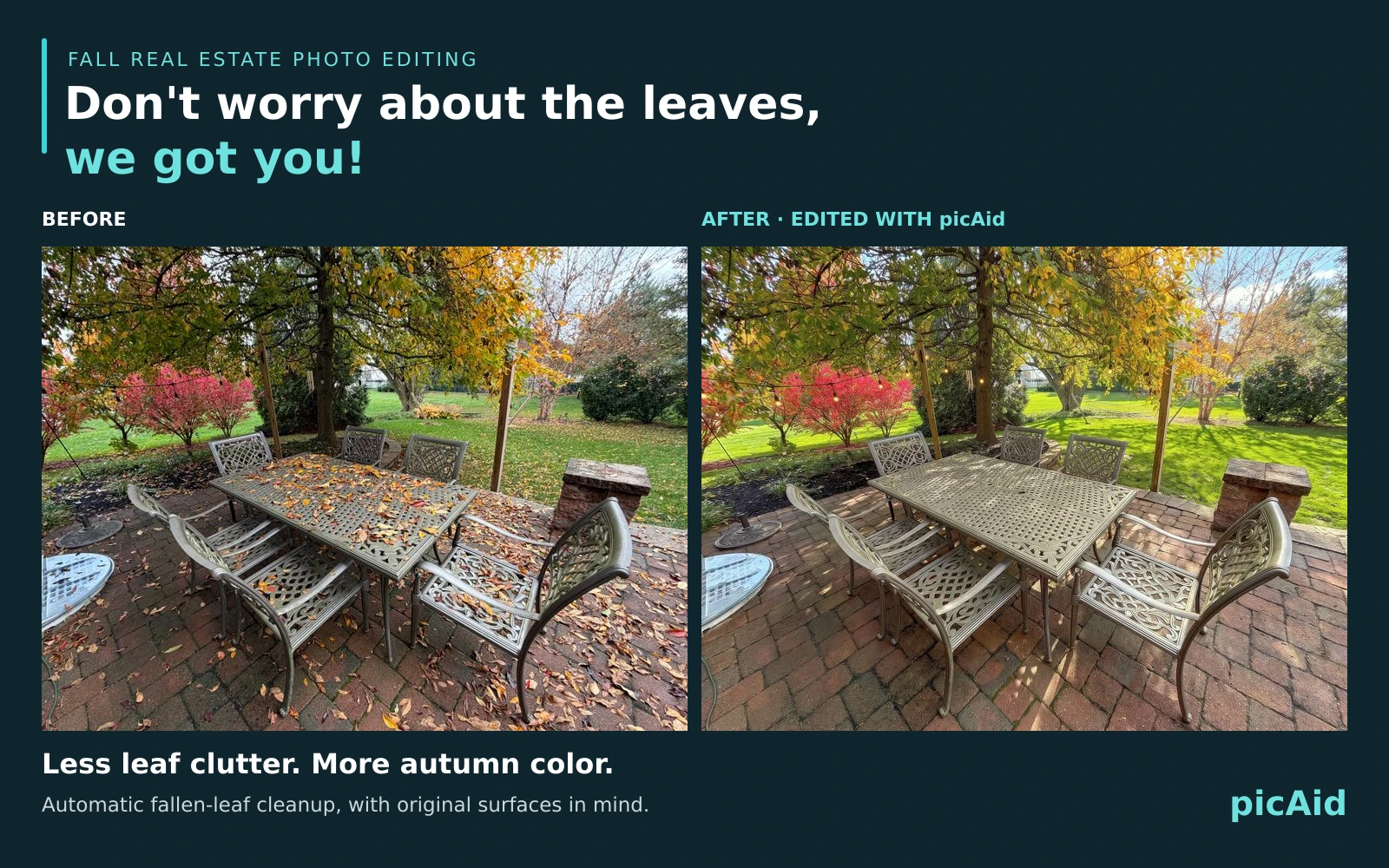
A real before-and-after patio example
The comparison above uses the original and edited photographs of the same patio. In the before image, scattered leaves cover parts of the outdoor table, chairs and brick paving. In the after image, those surfaces are easier to see and the scene has a sunnier, more colorful presentation.
This is a combined edited example, not a leaf-removal-only demonstration. The brighter light and richer color contribute to the overall result. The purpose of the cleanup is to keep the existing paving, furniture and surface character intact as they would appear without scattered leaves.
Automatic fallen-leaf detection, not a lawn-only cleanup
Fallen leaves can distract from more than grass. They collect on patios, driveways, sidewalks and outdoor furniture, obscuring the details buyers want to see. picAid's analysis looks for fallen leaves so the associated cleanup task can be applied automatically when detected.
Review the analyzed tasks and compare the finished image with the original. Sparse leaves or difficult lighting can still be missed, and an AI-generated result should be checked before it becomes a listing photo. Automatic detection saves effort; it does not replace your final review.
Keep the original surfaces. Leave fully blanketed areas alone.
Leaf removal is intended to preserve the visible material, pattern and character of the underlying surface. A brick patio should still look like that brick patio, rather than becoming a new paved design. Removing scattered leaves should not be used to disguise damage or imply a renovation.
Fully blanketed surfaces are meant to remain as they are to avoid guesswork. If the photo does not show what lies beneath the leaves, there is no dependable visual basis for reconstructing it. For a clean view of a completely covered area, the better option is to clear the leaves on site and take another photograph.
Check paving joints, lawn edges, furniture detail and any partially covered features in the result. If an edit changes the property rather than simply improving its presentation, use a different result or retain the original.
Want a fresh lawn with a light autumn touch?
For an intentional lawn transformation, add Grass mode and choose "Autumn with leaves." This replaces lawn areas with grass and gently scattered leaves, giving the yard a seasonal appearance without the visual clutter of heavy leaf coverage.
Grass mode is separate from surface-preserving leaf removal. It changes the lawn's appearance, so choose it deliberately and review whether that representation is appropriate for your listing. It is not a way to discover what a fully covered lawn actually looks like.
Fill trees with autumn leaves using Season mode
To add autumn foliage to the trees, turn Season mode on and choose "Fall." This is useful when you want a fuller seasonal presentation rather than simply cleaning fallen leaves from the ground.
Season mode is also an intentional alteration, not just a cleanup. You can choose it alongside Grass mode when that is your goal, or leave both off when you only want a brighter, tidier version of the scene already photographed.
A simple fall photo-editing workflow
Start with the clearest original photo available. Let the analysis identify the scene, review the selected tasks, and choose only the extra modes you actually want.
- Use the automatic leaf-removal task to reduce scattered fallen leaves where the underlying surfaces are sufficiently visible.
- Keep fully blanketed surfaces unchanged rather than asking AI to invent what is underneath.
- For lawn replacement with a seasonal touch, add Grass mode and select "Autumn with leaves."
- For fuller autumn tree foliage, enable Season mode and select "Fall."
- Compare the final image against the original, especially surface patterns, landscaping and property features.
Make the property inviting without making it misleading
Brighter autumn photos can help buyers appreciate a patio, outdoor dining area or yard. They should still understand what is physically present. Keep the original photograph, follow your MLS and brokerage's current image-editing rules, and disclose material alterations where required. A disclaimer does not make every alteration permissible.
picAid's disclaimer watermark can be configured under Settings in the menu. Where appropriate and permitted, include the original alongside an edited photo and explain which changes are illustrative, particularly replacement grass or added seasonal foliage.
Let the fall colors do their part, and let picAid help with the scattered leaves. The aim is a welcoming property photo, with sensible limits on what AI should change.