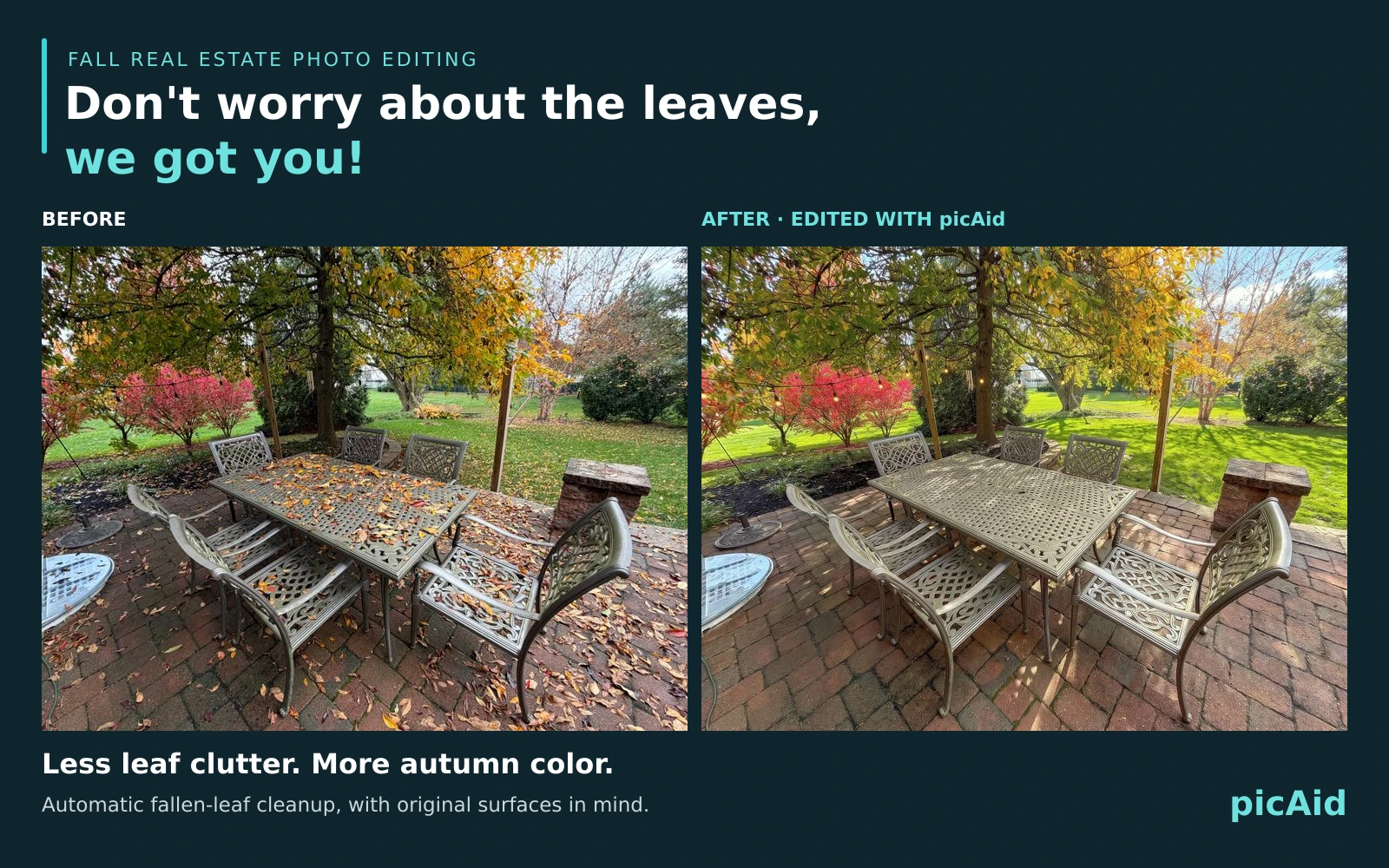
Exterior photo editing
Missed Peak Foliage? Restore Fall Color in Your Real Estate Photos
Bring autumn leaves back to bare trees in real estate photos with picAid's Seasons mode. See a before-and-after example and learn how to apply Fall across an exterior photo set.
picAid · Published · 4 min read
Put autumn leaves back on the trees, even after peak color
If the leaves fell before your photo shoot, picAid's Seasons mode can add autumn foliage back to the trees in your real estate photos. Select Fall to create a seasonal version of an exterior image, then review the result against the original before sharing it.
Peak foliage does not wait for a listing schedule. A windy weekend or a late photography appointment can leave a beautiful yard looking much barer than it did a few days earlier. A fall edit lets you illustrate that seasonal atmosphere without scheduling another shoot around next year's leaves.
Before and after: a backyard with its fall color back
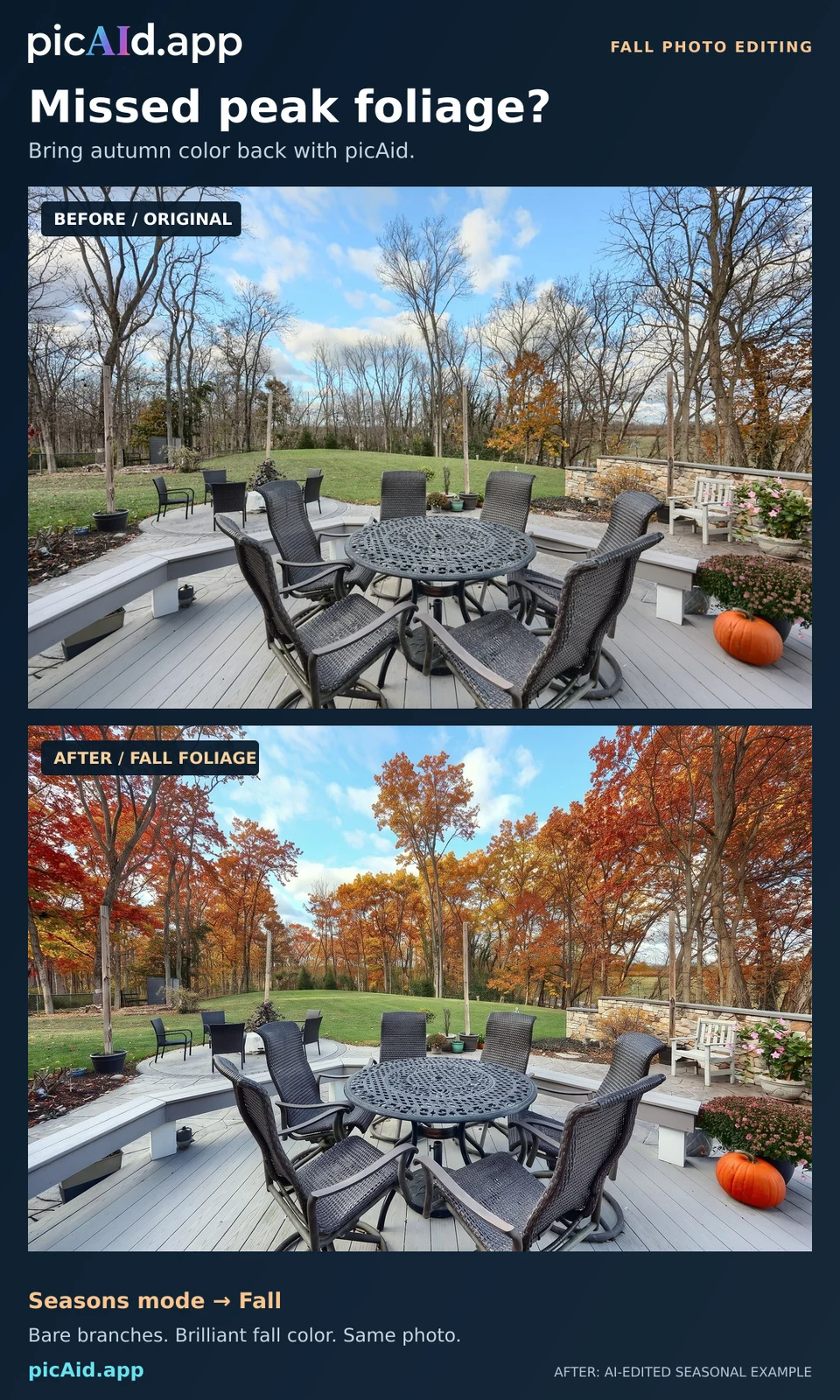
The supplied comparison shows the same deck and backyard before and after editing. In the original, most of the tall trees have already lost their leaves. The edited example fills the scene with warm red, orange and gold foliage, giving the outdoor dining area a much stronger autumn setting.
The after image is an AI-edited seasonal illustration, not a photograph captured at peak foliage. It demonstrates the kind of fall presentation you can create, rather than proving the exact colors, density or leaf coverage those trees had earlier in the season. Results vary, so compare both versions carefully.
How to restore fall foliage with Seasons mode
Start with your original exterior photo and let picAid analyze it. Enable Seasons mode and choose Fall. You can combine it with Edit mode if you also want your usual photo enhancements.
Review the task list before processing. The automatic "Cleanup the dead leaves" task may be helpful for a tidy driveway, but less appropriate when scattered leaves are part of the autumn scene you want to keep. Uncheck it when that seasonal detail matters.
- Upload and analyze your exterior photos.
- Enable Seasons mode on one image and select Fall.
- Review the other selected tasks, including automatic leaf cleanup.
- Process the image, then compare the edited version with the original.
Apply Fall to all exterior images in your set
You do not have to choose the same season separately on every photo. After selecting Fall for one exterior image, find "Apply to all Exterior:" below its settings and click or tap the bright green Season badge. This applies Seasons mode with Fall selected to the exterior images in that set.
This is especially useful when a property has a front yard, side garden, backyard and deck photographed on the same day. Applying the same selection saves setup time, but still review the finished set for consistent seasonal color and believable foliage.
Want more fallen leaves scattered across the lawn?
Seasons mode adds autumn foliage and also instructs the editor to include some fallen leaves. If you want a more noticeable scattering across the lawn, also enable Grass mode and choose Fall.
Use the bright green Grass badge beside "Apply to all Exterior:" to carry that autumn grass selection across the exterior group. Grass mode changes the lawn as well, so use it when that is part of the result you want, not simply as a foliage-only edit.
To remove the automatic leaf-cleanup task across a group, hold Ctrl while clicking to uncheck it on a computer, or press and hold to uncheck it on a mobile device. Confirm the group change when prompted.
Where a fall foliage edit can help
A wooded backyard can feel quite different when the trees are bare. Restored autumn color can help show the seasonal atmosphere around a deck, patio, outdoor dining area or garden seating space. Front-yard photos can also benefit when mature trees are an important part of the property's setting.
Use this deliberately. Adding foliage can change how much of a neighboring property, road or view is visible. Check that the result does not misrepresent year-round privacy, conceal a material issue or imply that new trees have been planted.
Keep the seasonal edit clear and appropriate
Check trunks and branches, rooflines, fences, windows and the edges where foliage meets the sky. AI can make unintended changes, so keep the original and reject results that alter important property features.
For listing use, follow your MLS, brokerage and advertising rules. Seasonal foliage is an intentional alteration, not a record of the scene on the day it was photographed. Disclose it where required, and use the original alongside it when appropriate and permitted. A disclosure does not override a rule that prohibits an edit.
Missed the perfect fall photo by a week? Choose Seasons mode, select Fall, and see whether a reviewed seasonal edit gives your exterior photos the autumn atmosphere you were hoping to capture.